HTML vs CSS: what's the difference, and how do they work together?
Every web page has two layers, what's on it and how it looks. Here's how HTML and CSS split that work, and you'll write your first CSS rule right in this page.
Christophe, founder of Lurndo
· 10 min read
HTML defines what's on a web page and what each part is; CSS defines how it looks. HTML says: this is the title, this is a list, this is a link. CSS says: make that title purple, centre it and give the list some room. The browser reads the HTML first, applies the CSS rules to it and paints the result. Without CSS a page still works; it just looks bare.
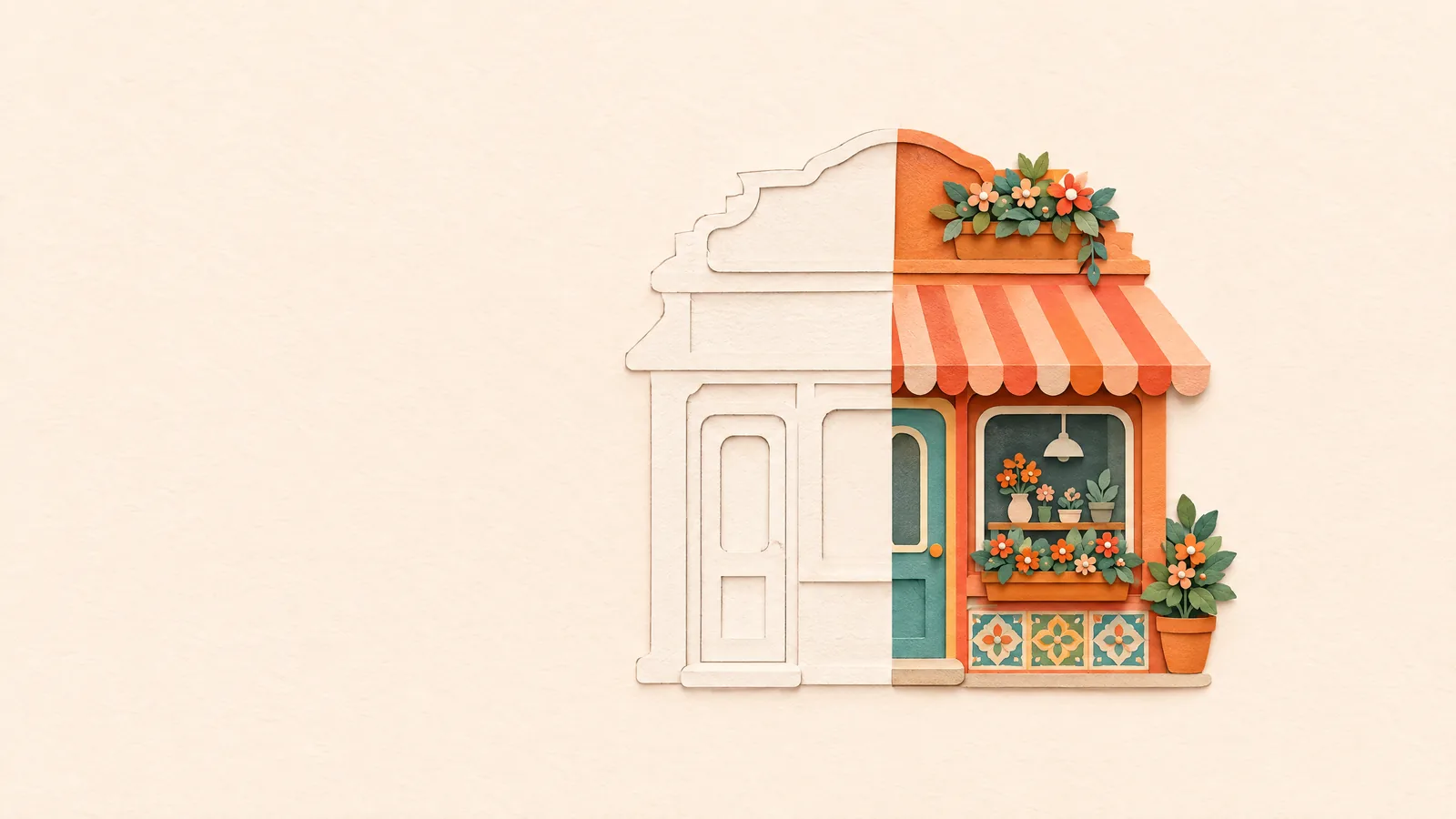
What's the difference between HTML and CSS?
HTML says what is on a web page; CSS says how it looks. With HTML you give every piece of text a role: this is the title, this is a paragraph, this is a price list, this is a link. With CSS you then choose the colour, the font, the space in between and where things sit on the screen. Two languages, two jobs, one page.
The people who maintain the standard put it plainly: "HTML is the World Wide Web's core markup language", and for the look of a page it points authors to a styling language like CSS (WHATWG). Think of a shop. HTML is the building, with its door, its window and the sign over the door. CSS is the paint, the striped awning and the flower boxes. Without paint you can still walk in. Without a building there's nothing to paint.
| HTML | CSS | |
|---|---|---|
| What it's for | Structure and meaning | Presentation and layout |
| The question | What is this? | How does it look? |
| Building block | An element: <h1>…</h1> | A rule: h1 { color: purple; } |
| File | index.html | style.css |
| Without the other | Works, with the browser's default styles | Has nothing to style |
| Kind of language | Markup language | Styling language |
| Since | 1989, public in 1991 | Proposed in 1994, a standard in 1996 |
What does HTML look like?
HTML is made of elements, and you mark an element with tags. An opening tag like <h1> says where the main heading starts, and the closing tag </h1>, with a slash, says where it ends. Here's a simplified piece of the site of Snip & Curl, the hair salon in Leeds that gets its first style in module 2 of our course:
<header>
<h1>Snip & Curl</h1>
<p class="slogan">Hair salon in the heart of Leeds</p>
</header>
<main>
<h2>Our prices</h2>
<ul>
<li>Haircut: £28</li>
<li>Colouring: £55</li>
</ul>
</main>
<footer>
<p>8 Kirkgate, Leeds</p>
</footer>Read the code aloud and you only hear roles, not looks: a header with a main heading and a slogan, a subheading, a list with two items and a footer. Nothing says the title should be purple or the footer grey. class="slogan" is a name you choose yourself, so you can find that one part again in CSS later. To see how tags and elements fit together, start with what HTML is.
Why does HTML describe meaning, not looks?
Because not everyone reads your page with their eyes. A screen reader doesn't read out colours, but it does announce that something is a heading, and a search engine follows the links in your HTML. If you only make the text big and bold, only people looking at the screen can tell it's a title. Meaning in HTML, looks in CSS: that keeps a page clear for everyone.
Still, the most used element on the web is one without any meaning. Of all elements on mobile pages in 2024, 28.7% were a <div>, a box that says nothing about what's inside it, far ahead of the link <a> at 12.6% (Web Almanac). A <div> isn't wrong, but <header>, <main> and <footer> tell the browser a lot more. You'll learn to pick them in blocks with meaning.
- <div>28.7%
- <a>12.6%
- <span>11.2%
- <li>7.7%
- <script>3.9%
Source: HTTP Archive, Web Almanac 2024, share of all elements
Why does a page without CSS still have big headings?
Because every browser brings a stylesheet of its own. Load a page without a single line of CSS and the headings are still larger than normal text, paragraphs start on a new line with space between them, and links are coloured and underlined. MDN calls these the browser's default styles: basic styling that keeps any page readable, defined in stylesheets inside the browser, which have nothing to do with HTML itself (MDN).
That explains a classic beginner's mistake: picking an <h1> because you want big letters, or an <h3> because the <h2> looks too large. You pick an element for its role, never for its looks. If the main heading is too big, you make it smaller with CSS, and the HTML still says it's the main heading.
Pick an element for what it is, not for how big the browser shows it by default. Size is a job for CSS.
What does CSS look like?
You write CSS in rules. A rule starts with a selector, which says which elements it styles. Then, between curly brackets, come one or more declarations: a property, a colon, a value and a semicolon. These three rules give the piece of HTML above a face of its own, without changing a single letter of the HTML:
h1 {
  color: purple;
  text-align: center;
}

.slogan {
  font-style: italic;
}

h2 {
  color: teal;
}The salon's name turns purple and moves to the centre, the slogan goes italic and the subheading turns teal. CSS is written in English, and American English at that: color, not colour. The browser quietly skips any property it doesn't know, with no error message, and almost everyone falls for that once. In what CSS is you see each rule light up the element it styles.
To pick out one particular part, you give it a class in the HTML and put a dot before that name in CSS, like .slogan. You'll learn how a class differs from an id in class and id, and every selector and property is on one page in the HTML and CSS cheat sheet.
How do you link CSS to HTML?
With a <link> in the <head> of your HTML. CSS usually lives in a file of its own, a stylesheet, and it only works once the HTML points to it. At Snip & Curl that pointer sits in index.html, just below the title that shows in the browser tab:
<head>
<title>Snip & Curl hair salon</title>
<link rel="stylesheet" href="style.css">
</head>The pay-off is big: ten pages with the same <link> share one stylesheet. Change the colour of h2 once and it changes across the whole site. CSS can also go in a <style> element or in a style attribute on a single element, but then it only applies there and it's hard to find later. You can practise it in linking a stylesheet. On the page below, the link is already in place: style.css is still empty, waiting for your first rule.
Try it: your first CSS rule
Your first rule of your own: make the footer (footer) grey with gray and centre it. The rest of the page stays as it is.
/* Your CSS goes here. */<!DOCTYPE html><html lang="en"> <head> <title>Snip & Curl hair salon</title> <link rel="stylesheet" href="basis.css"> <link rel="stylesheet" href="style.css"> </head> <body> <header> <h1 id="name">Snip & Curl</h1> <p class="slogan">Hair salon in the heart of Leeds</p> </header> <main> <h2>Our prices</h2> <ul class="price-list"> <li><span class="service">Haircut</span> <span class="price">£28</span></li> <li><span class="service">Wash and blow-dry</span> <span class="price">£22</span></li> <li><span class="service">Colouring</span> <span class="price">£55</span></li> </ul> <section id="booking"> <h2>Book an appointment</h2> <p class="info">Give us a call or just pop in.</p> <a class="button" href="tel:+441134960000">Call us</a> </section> </main> <footer> <p>8 Kirkgate, Leeds</p> </footer> </body></html>body { margin: 0; padding: 0 16px;}The rule you just wrote ran in your own browser, on a real page. Lurndo doesn't check it letter by letter; it checks what the browser makes of it: the colour and alignment the footer really gets, and whether the rest of the page is left alone. It does that on a second version of the page too, with different text. So if you wrote #808080 instead of gray, that counts just as well: it's the same colour.
How does the browser combine HTML and CSS?
- The tree. The browser reads the HTML and turns it into a tree, the DOM.
<main>is a branch, the<h2>and<ul>inside it are smaller branches, and the text in each<li>is a leaf. - The rules. For each element it finds the CSS rules whose selector matches. Together with the DOM, that gives the render tree: everything that will be visible, with its styles. An element with
display: noneis left out. - Layout. It works out exactly where each box sits and how big it is, in pixels.
- Paint. Finally, it turns the render tree into pixels on your screen.
That's why the shape of your HTML matters. CSS picks elements by their place in that tree: footer p means "every paragraph inside the footer". A missing closing tag moves branches around, and suddenly a rule hits something you didn't expect. In our lessons the page next to your code changes as you type: each time, the browser runs those four steps again, and you see straight away what your rule does.
Where does JavaScript fit in?
JavaScript is the third layer: behaviour. HTML says what's there, CSS how it looks, and JavaScript what happens when you click, type or scroll, like a menu that opens or a form that flags a mistake before you send it. Unlike HTML and CSS, JavaScript is a real programming language, and it can change the DOM and the styles after the page has loaded. You don't need it to get started, though: with HTML and CSS alone you can build a site that fits every screen.
When were HTML and CSS created?
HTML came first: content before presentation. Tim Berners-Lee invented the World Wide Web in 1989 and also wrote the first version of HTML (W3C). The proposal for the web, Information Management: A Proposal, went round CERN that year, and in August 1991 the web's files were made available to anyone on the net (W3C).
CSS followed three years later. On 10 October 1994, Håkon Wium Lie published a proposal for Cascading HTML style sheets: style sheets for HTML (W3C). The W3C, the body that has worked on the web's standards ever since, was founded that same month (W3C). Lie and Bert Bos turned the proposal into a standard: CSS1 became a W3C Recommendation on 17 December 1996 (W3C).
Browsers didn't wait for the standard. Internet Explorer 3, released in August 1996, was the first commercial browser to support CSS, and CSS2 followed in May 1998 (W3C). HTML kept changing too, with a whole series of revisions between 1990 and 1995 alone. Since a 2019 agreement between the WHATWG and the W3C there's a single HTML, the standard the WHATWG maintains (WHATWG).
- 1989Tim Berners-Lee invents the web and writes the first version of HTML
- Aug 1991The web's files are made available to anyone on the net
- 10 Oct 1994Håkon Wium Lie proposes Cascading HTML style sheets
- Aug 1996Internet Explorer 3, the first commercial browser with CSS
- 17 Dec 1996CSS1 becomes a W3C Recommendation
- May 1998CSS2 becomes a W3C Recommendation
- 2019WHATWG and W3C agree on a single HTML
Source: W3C and WHATWG
Should you learn HTML or CSS first?
Both, together, with HTML a little first. CSS styles elements that live in the HTML, so a rule like footer { color: gray; } only makes sense once you know what a <footer> is. The other way round, plain HTML gets dull fast: after a few lessons you'll want to see some colour. So start with tags and elements, and write your first CSS as soon as you can build a page with headings, paragraphs and a list.
You can see how closely the two belong together in Stack Overflow's yearly survey of developers. The Stack Overflow Developer Survey 2025 counts HTML/CSS as a single language: 61.9% of all respondents use it, 63% of professional developers and 66.6% of people learning to code (Stack Overflow).
That's how our course is built too. Module 1 starts with tags and elements, module 2 brings your first CSS, and in module 3 you give your page structure and meaning. Those three modules are free. Learn HTML and CSS as a beginner shows how the lessons build on each other, and build your own website shows where you're heading. And if you want to put something neatly in the middle next, here's how to center a div.
Frequently asked questions
What do HTML and CSS stand for?
HTML stands for HyperText Markup Language, a language that uses tags to say what each piece of text is. CSS stands for Cascading Style Sheets, sheets of rules that cascade over each other like a waterfall. When two rules hit the same element, the cascade decides which one wins.
Is HTML a programming language?
No. HTML is a markup language. You describe what's on a page, but you don't give the computer steps to carry out, and there's nothing to calculate. CSS isn't a programming language either; it's a styling language. If you want a page to do something when you click, you need JavaScript.
Can a website work without CSS?
Yes. The browser then shows the HTML with its own default styles. Headings are larger than normal text, paragraphs get space between them, and links are coloured and underlined. Everything is readable and every link works, but it's all stacked in one column. CSS turns it into a design, with colours, columns and a layout that fits a phone.
How do you link CSS to HTML?
With one line in the head of your HTML, <link rel="stylesheet" href="style.css">. rel says the file is a stylesheet and href says where it is. Every page with that line uses the same stylesheet, so one change updates the whole site. You can practise it in linking a stylesheet.
Should I learn HTML or CSS first?
Both, ideally together, with HTML a little first. CSS styles elements that live in the HTML, so a rule only makes sense once you know what an element is. But after a few lessons of plain HTML you'll want to see some colour. That's why our course starts with HTML and brings in CSS in module 2.
How do HTML, CSS and JavaScript work together?
They're three layers of the same page. HTML says what's there, CSS how it looks, and JavaScript what happens when you click or type, like a menu that opens. Only JavaScript is a real programming language. For a complete site that looks good and fits every screen, HTML and CSS are enough.
Practise this in the course
Every lesson explains first and then lets you practise yourself, with a real browser in your browser.
- CSS rulesFirst style · What CSS is
- Elements and tagsFirst page · What HTML is
- StylesheetsFirst style · Linking a stylesheet
- Semantic blocksStructure and meaning · Blocks with meaning
Sources
- WHATWG, HTML Living Standard, Introduction
- W3C, History
- W3C, A Little History of the World Wide Web
- Håkon Wium Lie (W3C), Cascading HTML style sheets, a proposal (1994-10-10)
- W3C, Cascading Style Sheets, level 1 (1996-12-17)
- W3C (Bert Bos), A brief history of CSS until 2016 (2016-12-17)
- MDN, What is CSS?
- web.dev, Render-tree construction, layout, and paint
- HTTP Archive, Web Almanac 2024, Markup (2024)
- Stack Overflow, Stack Overflow Developer Survey 2025, Technology (2025)
Christophe, founder of Lurndo
Christophe builds Lurndo from Belgium, with short, playful exercises for SQL, Excel, HTML & CSS and touch typing that show straight away what your answer does. On this blog, Christophe answers the questions people run into while learning, with sources you can check yourself.
Read next
 How to center a div in CSS: six ways, and when to use eachCentering horizontally is easy enough; vertically is where it goes wrong. Here are the six ways that work today, when to pick each one, and a few food trucks for you to center yourself, right in this page.HTML & CSS · · 10 min read
 How to calculate an average in Excel: blanks, zeros, conditions and weighted averagesIt's one function, yet averages go wrong all the time. See how AVERAGE works, what it skips, and how to average without zeros, with a condition or with weights, on real spreadsheets.Excel · · 11 min read